
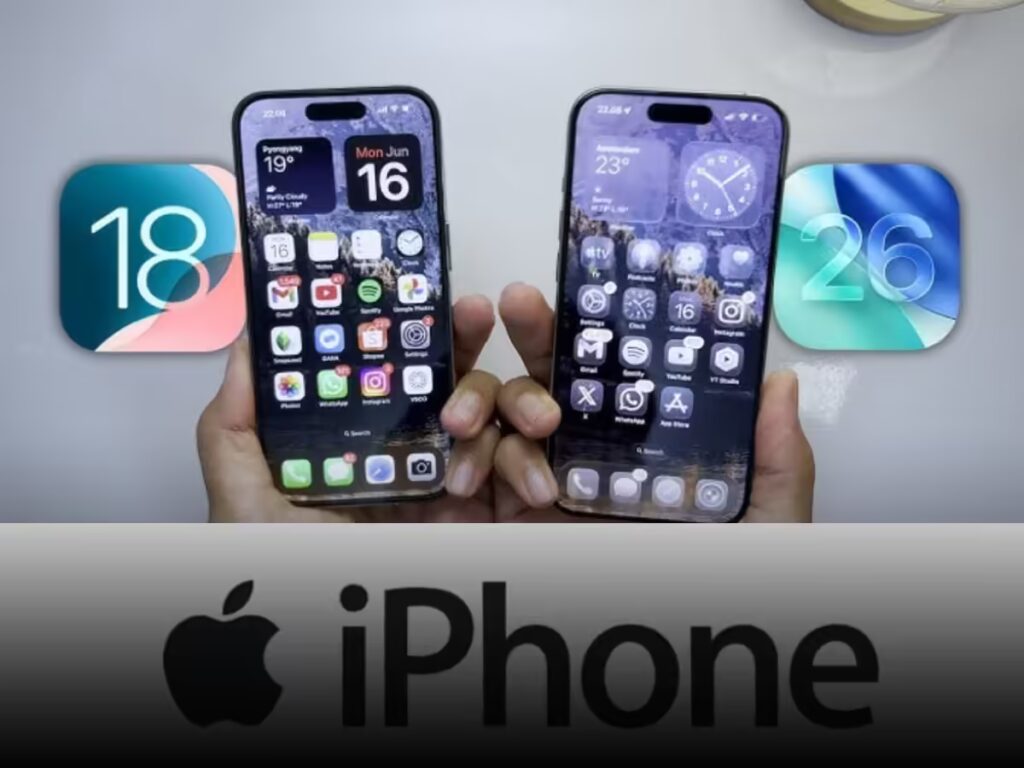
After launching the iPhone 17 series, Apple also released the iOS 26 OTA update on 15 September. Millions of users installed it as it included many new features and changes. However, some people are facing problems like this update to end the battery quickly and slow the phone. If you also do not like iOS 26, you can go back to iOS 18.
Step-by-step checklist to downgrade iOS 26 to iOS 18
Step 1- Backup
Create backups on iCloud, Mac (Finder) or Windows (iTunes).
It will be safe to keep more than one backup.
Step 2- Close Find My iPhone
Settings → Your name → Find My → Find My iPhone →
Sign out of Apple ID.
Step 3- Download iOS 18.6.2 IPSW file
Get the right file for your iPhone model from Apple’s official site or iTunes.
Step 4- Connect iPhone to computer
Open iTunes on Finder or Windows on MAC.
Check if your device is being identified.
Step 5-Put the iPhone in DFU mode
Increase the volume → Get out by pressing the volume.
Press the side button until the screen turns black.
Now press the side + volume button for 5 seconds.
Leave the side button, but keep the volume reduced until the computer is identified.
Step 6- Start the restore process
MAC → Restore Option + iPhone → Choose IPSW file.
Windows → Shift + Restore → Choose IPSW file.
Keep the iPhone connected until the installation is completed.
Step 7-Setup iPhone
On completion of the installation, setup the iPhone as a new device.
Or restore the backup already taken.
What will happen to your data?
Downgraded will delete all the data of your phone. Therefore it is very important to have backup. After downgrade, you can either setup your iPhone as a new device or restore backup taken.