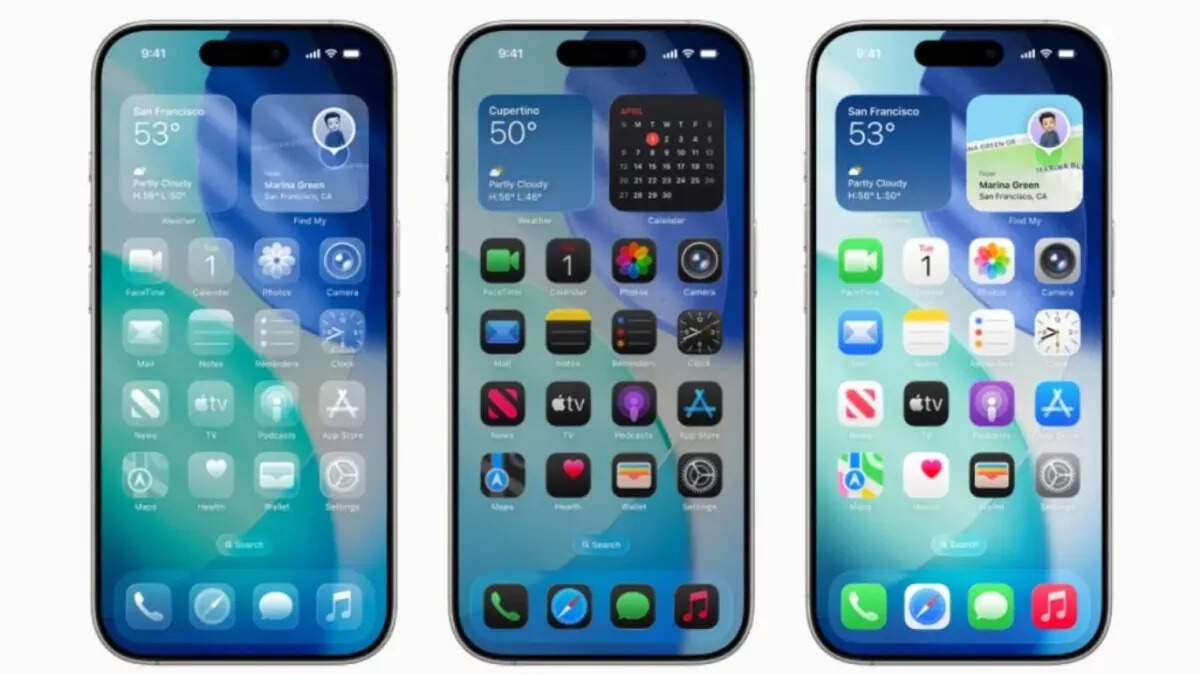
Apple’s latest iOS 26 update has come and in addition to features such as call screening and new ringtones, the iPhone is also having a completely new liquid glass design. This is the biggest visual change after iOS 7.
The menu and system elements now appear transparent, with effects such as blurry and glass. Some also vibrate lightly on tapping. Some users like this layered and modern look, but some find this attention distracting or reading it. If you do not want this new look, it is not possible to close it completely, but you can definitely reduce it.
What is liquid glass?
Liquid glass adds transparency throughout the iPhone interface. Its purpose is to create depth, so that your wallpaper or app appears from the background, menu and control. The principle is that it makes it clear how the elements of the screen are connected among themselves.
But everyone does not like it in practice. This can make the menu busy and difficult to read. Apple tried to make some changes in the design during beta testing, but its effect is still clearly visible in apps such as messages, safari and control centers.
Apple does not give you the option to completely close liquid glass, but it gives you the option to avoid it completely. With some easy settings, you can give your iPhone a new look.
How to reduce the effect of liquid glass?
If you want to keep things simple, you can reduce the effect of liquid glass by going to accessibility settings. Just follow these steps.
Go to the Settings app.
Then tap on accessibility.
Go to the display and text size.
Turn on the “Reduce Transparency” here and adjust accordingly.
This will transform your transparent menu into deep and solid background, which will make it easier to read text and button. You can also turn “Increase Contrast” for more clarity. This option highlights screen elements so that they look different from the background.